Setting Git on a new Windows Machine & SSH Key
go to https://git-scm.com/download/win download appropriate file "64 bit Git for windows setup" install the downloaded exe (use all defaults)
Launch GitBash
on browser go to https://docs.github.com/en/authentication/connecting-to-github-with-ssh/generating-a-new-ssh-key-and-adding-it-to-the-ssh-agent?platform=windows copy the command for generating-a-new-ssh-key-and-adding-it-to-the-ssh-agent paste the following command - ssh-keygen -t ed25519 -C "ranjit@gqc.com" get the followingGenerating public/private ed25519 key pair. Enter file in which to save the key (/c/Users/RanjitPrabhu/.ssh/id_ed25519): Created directory '/c/Users/RanjitPrabhu/.ssh'. Enter passphrase (empty for no passphrase): Enter same passphrase again: Your identification has been saved in /c/Users/RanjitPrabhu/.ssh/id_ed25519 Your public key has been saved in /c/Users/RanjitPrabhu/.ssh/id_ed25519.pub The key fingerprint is: SHA256:4KHmhlNbKnIzIDTcYvaNEnrQ75neqDwsnjnPinFXt7Q ranjit@gqc.com The key's randomart image is:
then go to : https://docs.github.com/en/authentication/connecting-to-github-with-ssh/adding-a-new-ssh-key-to-your-github-account
then give following command clip < ~/.ssh/id_ed25519.pub (copys the key into memory)
go to github.com >login to self account
go to Settings and click on SSH and GPG keys > add SSH Key give maching name and paste the key from memory thenk click on ADD SSH KEY button
give the following command after setting up GIT > in git bash windows
git config --global user.email "ranjit@gqc.com"
git config --global user.name "Ranjit"
once the SSH Key is added then go to organization in Git (GQC/) and look for repositories to be cloned
go to the repo to be cloned and copy the SSH link (for Sensor-Network--Sensor_Nodes > git@github.com:gqc/ESP32-Sensor-Network--Sensor_Nodes.git)
go to c:/git/gqc and give the following command > git clone git@github.com:gqc/ESP32-Sensor-Network--Sensor_Nodes.git
then for Esp-Sensor-Network > git@github.com:gqc/ESP32-Sensor-Network.git
then for Linux-Socket-apps > git@github.com:gqc/linux_socket_app.git
then clone People-Projects > git@github.com:gqc/people-project.git
to open Visual Studio code > give command "code ." from the respective folder
install ESP IDF : got to Extensions icon on VS Code and look for Espressif IDE extension
when prompted for installation use Advance Option > Select show all ESP-IDF tags then Select ESP-IDF Version dropdown select v4.4.2 (release version) for directory and tool use defaults
After installation complete install IDF Tools
for Remote SSH > add Remote-SSH inthe VS Code Extensions
- once SSH extension is installed do (ctrl+shift+p) and look for > Remote-SSH add new host
To take notes in mark down format add Paste Image extension and install
- select the image using snipping tool copy the image and then go to markdown document and press (Ctrl+alt+v) to paste the snipped image to the document
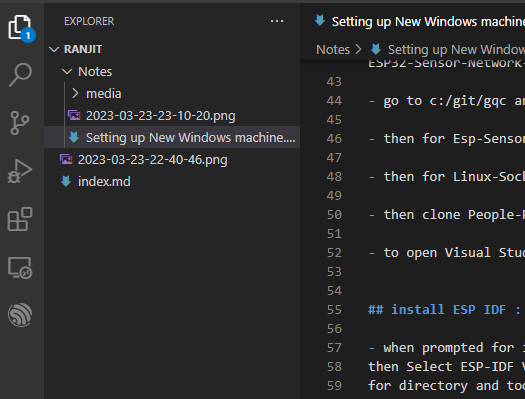
- then (ctrl+S) to save the file.
To sync / Upload documents to your individual folder
- first save file with (ctrl+S) > Go To 3rd icon in left column (Source Control) click on Repo
- after saving document > select changes with "+" then commit changes with commit message > then Sync Changes